
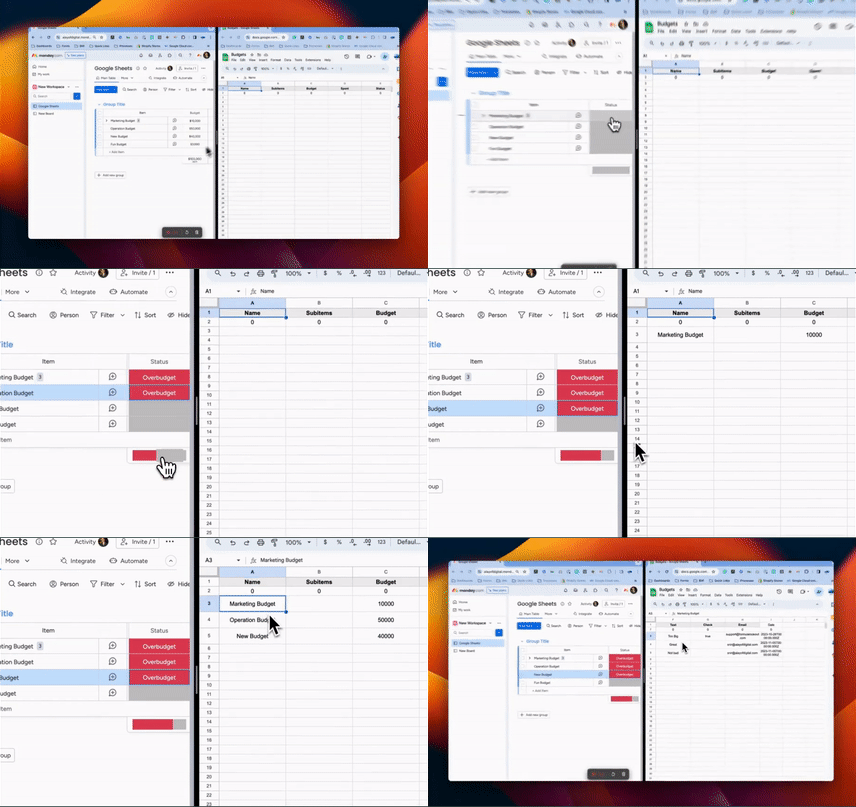
Welcome to Google Sheets Automations. In this tutorial, we're going to explore how you can revolutionize your workflow by integrating Google Sheets with Monday using our innovative app. This powerful combination allows for seamless synchronization of data, ensuring that your projects and tasks are always up to date.
How to install
- Open the App marketplace and search for Google Sheets Automations.
- Click on Add to your Account.
- Click on Install and add the app to your preferred workspace or all of the workspaces.
- Pick the board which you'd like to connect to your sheets and then install.
Choosing your Recipe
Next, you'll be redirected to a list of recipes which you can use. These recipes are preset automation rules that tell the app when it should work and what should it do.
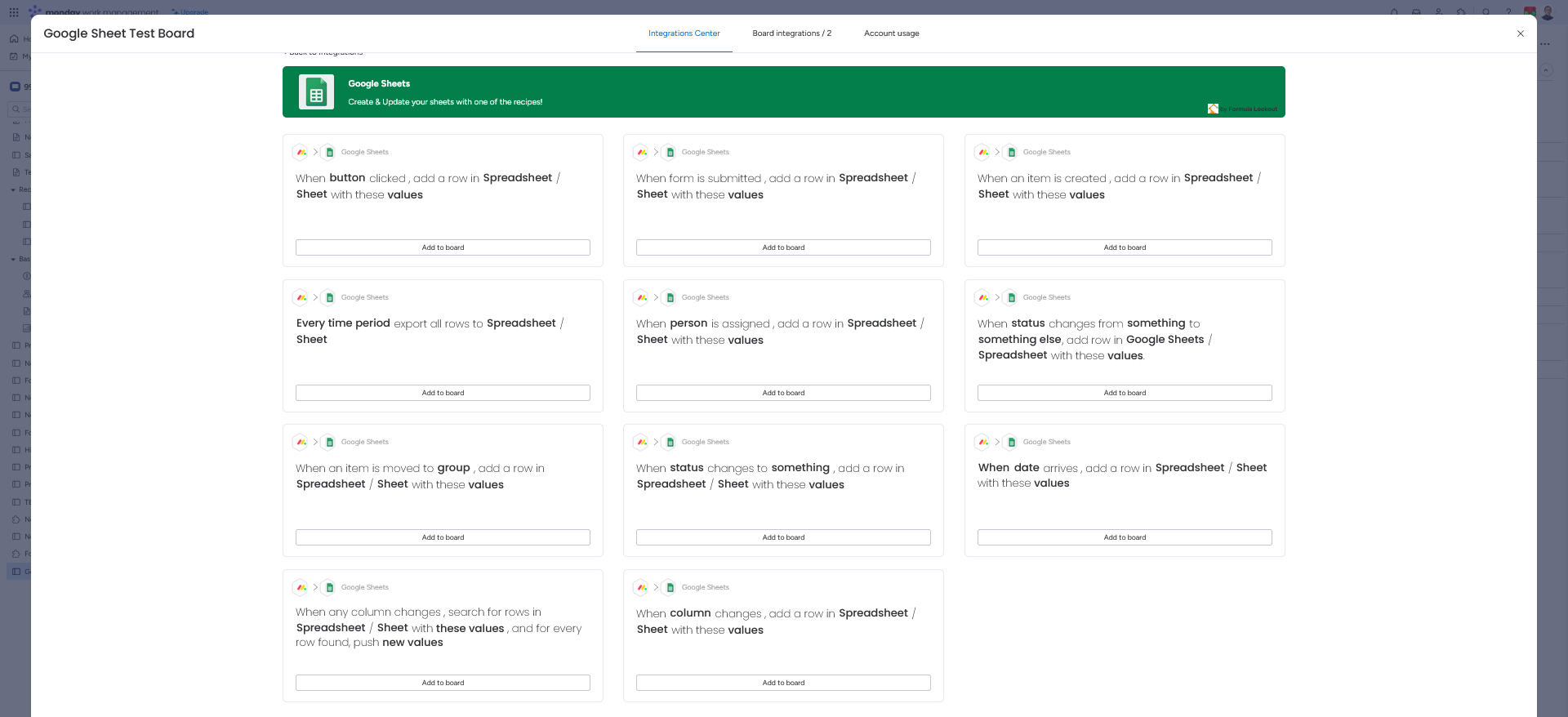
To get started, pick a recipe that matches your use case. In this case, we're going to pick "when status changes to Done".
In the first time you pick a recipe, you'll be asked to authorize on Monday and Google. It's important that you provide those permissions so the app can pull the sheets you have on your Google Account and create the bridge between your Monday Boards and your spreadsheets.
Click on the gray texts to customize the automation. When you click on the text Google Sheets, all of the sheets from your Google Account will load. If you fail to see the sheet you want to connect, please make sure you authorize the right Google Account and that you have editing permissions. Next, we will map the values from Monday to your Sheet.
Mapping the Columns
The fields you see here are taken from the first row of your spreadsheet. The headers, for example. The headers in our sheet are name, title, company, type, priority and so on. If we add another column to our sheet, we will see it on Monday as a field we can map.
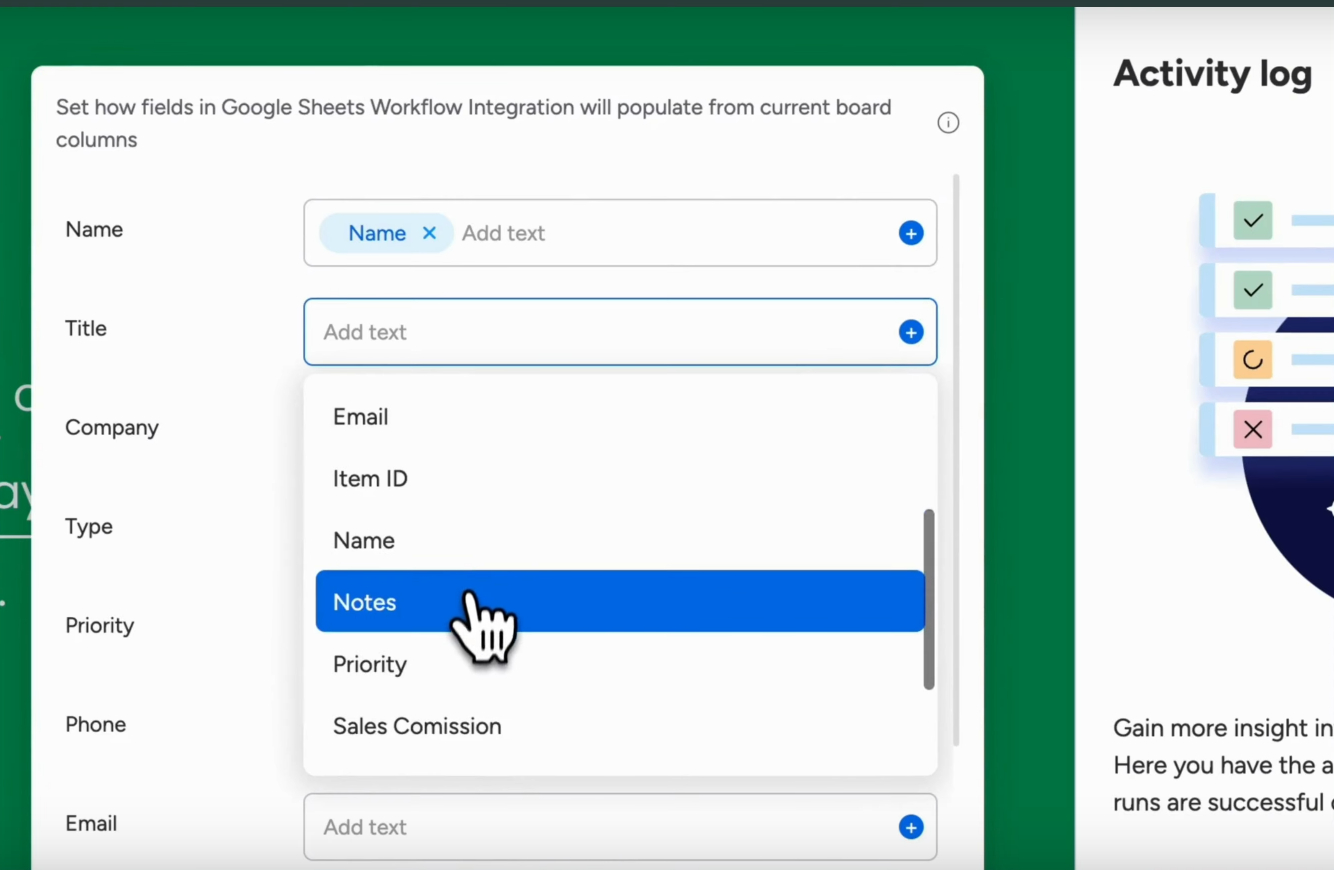
Please make sure that the first row in your spreadsheet contains column headers. When you click on the Blue Plus icon on the right side of the field, you'll be able to choose columns from your board. These columns are dynamic, meaning they will change based on the row we send from Monday to our Sheet. You can combine as many values as you want in the same field or use plain text. Each time the status will change in our Monday board to Done, a new row will be created in our Sheet.
If you still need some help, please do not hesitate to contact us [email protected].